

AI Settings
In the project’s Settings > AI section, you can configure and manage AI prompts and select default prompts for features like pre-translation, AI suggestions in the Editor, AI Alignment, and AI-powered QA checks.
By default, prompts are inherited from the organization’s AI settings. If defaults on the organization’s AI > Settings page are not configured to apply automatically to all projects, select prompts in the project settings to activate pre-translation, AI suggestions, AI Alignment, and AI-powered QA checks.
The AI prompts configured in the project settings will also be added to the list of AI prompts of the organization.
AI Prompt Types:
- Pre-translation & AI Suggestion
- AI Alignment
- QA Check
- Custom type
Before the AI Prompts can be configured in the project settings, it’s also necessary for the organization owner or admins to configure the AI Providers.
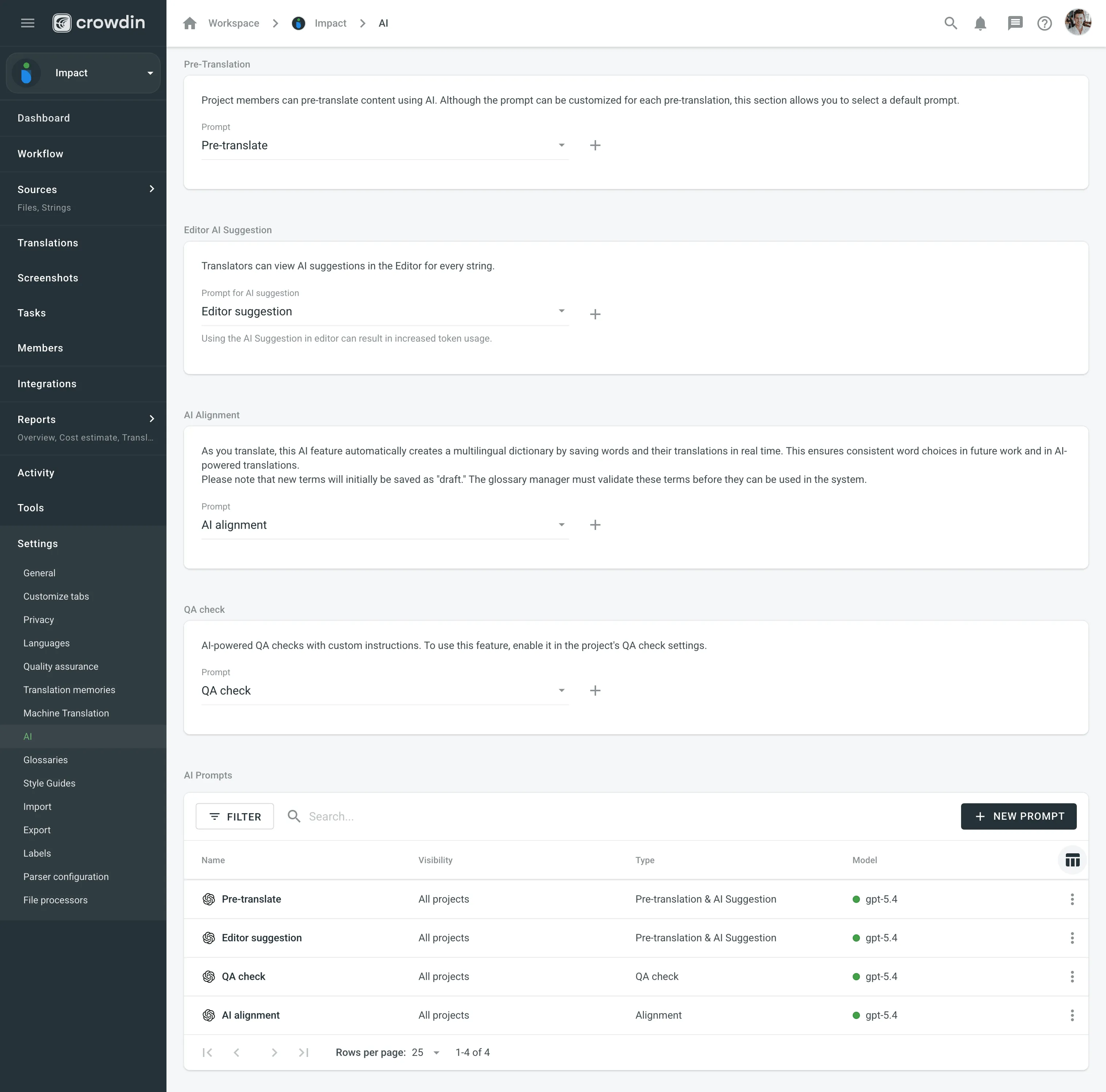
The settings at the top of the page allow you to assign default prompts for key features within this project. Any prompt selected here will take precedence over the default settings inherited from the organization settings.
- Pre-translation: Select the default Pre-translation & AI Suggestion prompt that will be automatically selected when running AI pre-translation in this project.
- Editor AI Suggestion: Select the default Pre-translation & AI Suggestion prompt used for AI suggestions in the Context & Translations section in the Editor.
- AI Alignment: Select the prompt that will be used to automatically generate bilingual draft terms from project translations.
- AI QA Check: Select the default QA Check prompt used for AI-powered QA checks.
For each option, you can either select an existing prompt from the dropdown menu or click to create a new one.
Below the default prompt settings, the Prompts section lists all AI prompts available to the project. This interface functions identically to the main prompts list in the organization settings.
From here, you can perform several actions:
- Click Add Prompt to create a new prompt (it will be added to the organization-level list).
- Use the Search field and Filters to find specific prompts.
- Click on a prompt to Use prompt (only for Pre-translation & AI Suggestion prompts), Edit, Clone, or Delete it.
Read more about Crowdin AI.